Fishing King is no longer offered for purchase. New purchases and support payments are disabled. Existing accounts and licence access remain available.
STEP BY STEP
Set up.
Understand. Go fishing.
Follow these steps in order the first time. Later, use the contents to find the setting you need.
Game automation may violate the game publisher’s rules and lead to an account ban. No guarantee of ban safety. Supervise your tests.
In Zul’Aman in particular, fishing can spawn enemies. Fishing King cannot fight or resurrect you.
STEP 1
Installation and licence
The program window is named Fishing King. Fishtazo is its website.
- Download the installer using the download link in your licence email. Open the setup file and select English or Deutsch.
- Enter your complete key when prompted and choose “Verify and continue”. An internet connection is required.
- Finish setup and open Fishing King. The program uses the language selected during setup. Check the licence status at the top before you start fishing.
The website and payments are still in test mode. Use the provided test licence keys.
STEP 2
Prepare the game
Prepare your fishing spot in the game first. The bot cannot replace a missing fishing skill, fight enemies or resurrect your character.
- Go to a reachable fishing spot and check that you can fish there manually.
- Bind your fishing action to an action bar key, for example 1. Test it: your character must cast the fishing line.
- If you want to use a lure, bind the required lure action to a second key, for example 2. Test this manually as well.
- Enable auto-loot in the game so loot is collected without another confirmation.
- Close chat and menu windows. Keep the bobber clearly visible and the camera steady during each cast.
Windowed or borderless mode makes switching to the bot easier. After a disconnect, check auto-loot and the game state again.
STEP 3
Select the window and game mode
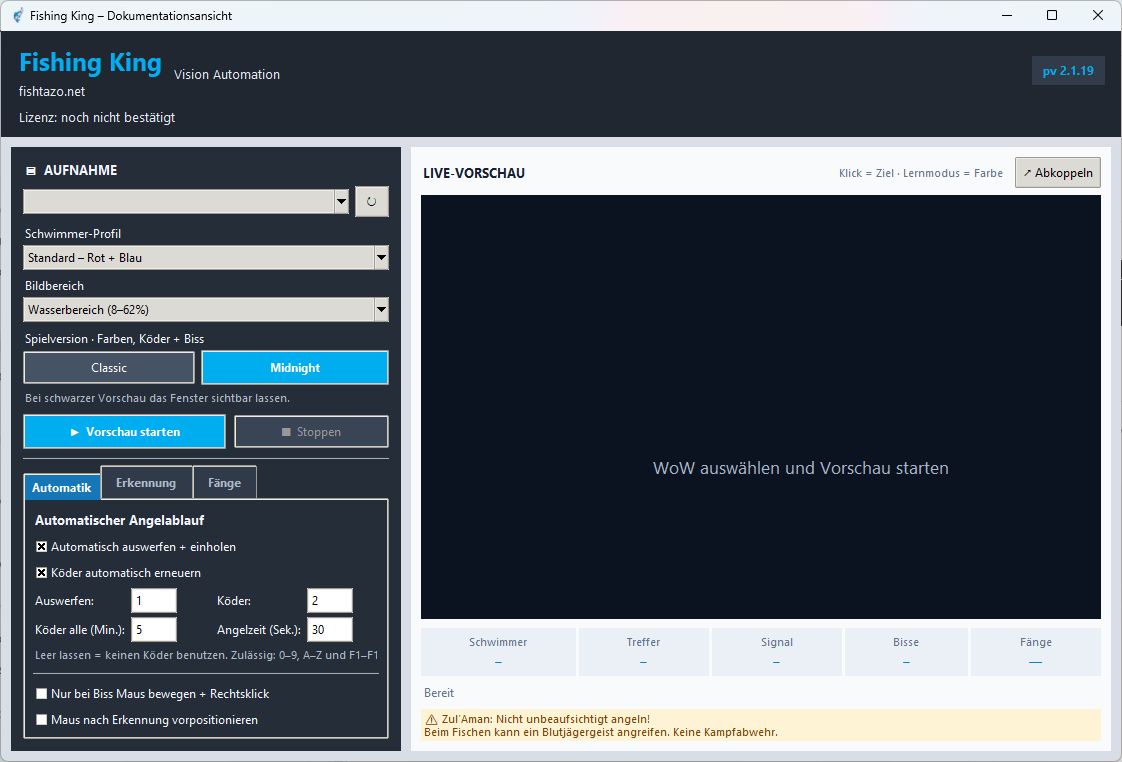
Capture settings are in the top-left of the bot.
- Under “Capture”, select the specific game window. Refresh the list with ↻ if it is missing. Do not select the entire screen for automation.
- Choose Classic or Midnight to match your game. This switches the saved colours, lure settings and bite detection.
- Choose a “Capture region” that contains the entire bobber. A suitable small region has fewer distracting objects than the whole screen.
- Select a “Bobber profile”. At difficult fishing spots, you can learn a custom colour later.
Keep the game window visible. Automatic game input is sent only when the selected game is in the foreground.
STEP 4
Configure keys and lures
Open the “Automation” tab. The keys must match your in-game action bar.
- Set “Cast” to your fishing key, for example 1.
- Set “Lure” to your lure action key, for example 2. If you do not use a lure, disable “Automatically renew lure”; you can also leave the lure key blank.
- Check “Lure interval (min)”. Defaults are 5 minutes for Midnight and 10 for Classic. Adjust this to your lure’s actual duration. Custom settings are saved separately for each game mode.
- “Cast timeout (s)” limits an attempt. Allow enough time for a normal cast, otherwise the bot will recast too early.
- Optional: “Move mouse to detected bobber in advance” moves the cursor as soon as detection is stable. Otherwise it moves when reeling in.
Allowed keys: a single 0–9, A–Z or F1–F12. “Automatically cast + reel in” is the full cycle. “On bite only: move mouse + right-click” is a separate mode, not an extra setting for the full cycle.
STEP 5
Learn the bobber colour
Choose a clearly visible colour on the bobber that is uncommon in the surrounding water and scenery. Red is not automatically the best choice.
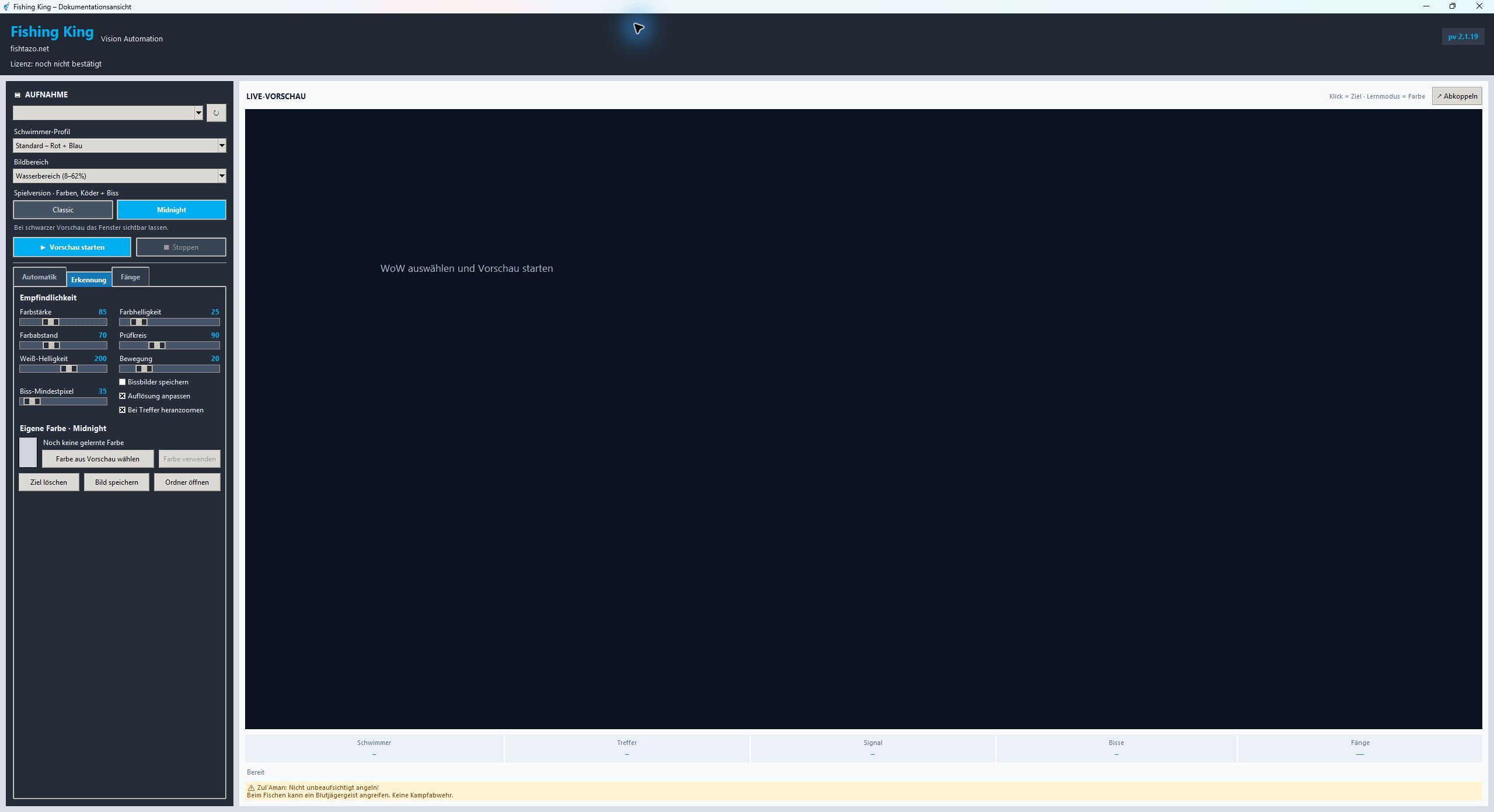
- Choose Classic or Midnight first, then open “Detection”.
- Start the preview deliberately and switch to the game to cast. When the bobber appears, switch back to the bot. No game input is sent while the game is not in the foreground.
- Choose “Pick colour from preview”. Hover over an evenly coloured part of the bobber in the preview.
- Click that colour, not white splash foam, shadows or nearby water.
- Click “Use colour”. This second click confirms the selection. The profile changes to “Learned colour”.
- Switch back to the game and watch several casts. The target marker should stay on the bobber, not jump to other objects.
A normal preview click only sets a target hint. Colour selection requires learn mode. Use “Clear target” to remove a wrong hint. You may need to relearn the colour after moving to a new spot.
Zoom and the separate preview window
“Zoom in on bobber” shows an enlarged region around the detected bobber. If the target disappears, the search resumes. It does not zoom the in-game camera.
“Undock” opens a separate preview; “Dock” brings it back. Do not place the preview over the in-game bobber.
STEP 6
Start, observe and stop
“Start preview” is not just an image test: if automation is enabled, fishing begins when the game window is in the foreground.
- Check the selected window, game mode, keys and lure interval.
- Click “Start preview” and bring the selected game window to the foreground.
- Watch several full cycles: cast → find bobber → detect bite → right-click → collect loot → cast again.
- Check loot in the game as well. A rising bite counter does not prove that loot was collected.
- To finish, switch to the bot and click “Stop”. Stop deliberately before leaving for a long time or changing fishing spots.
Fishing King uses your normal mouse and keyboard. Do not rely on it to stop by itself after failed catches, death or connection problems.
STEP 7
If something goes wrong
When reporting an issue in the forum, include the bot version, Classic/Midnight, profile and what happened. Screenshots help. Remove licence keys, chat messages, names and other personal details first.
STEP 8
Licence, updates and uninstalling
The licence status at the top shows whether the bot is activated. If there is an error, check your internet connection, complete key and expiry date. Do not share your key publicly.
Your account area shows associated licences. Subscription management opens Stripe; cancellation must be confirmed there. This flow is still in test mode.
The customer edition includes an updater. When no update is available, its window closes automatically. General update distribution is not enabled for the current test edition yet.
To remove Fishing King, close it and uninstall it through Windows installed apps. Uninstalling does not cancel a subscription. Cancel separately in subscription management.